
Ask the simulator.
The plant answers.
Nuclearn Simulator AI puts a full-scope plant simulator under AtomAssist's control. Replay an event from operating experience, try a what-if, or describe a scenario in plain words. AtomAssist writes the scenario file, checks it against the simulator's own lists, runs it, and tells you what the plant did.
In partnership with
- No changes to the simulator
- Single-tenant, hosted by Nuclearn
- Signs in through Nuclearn
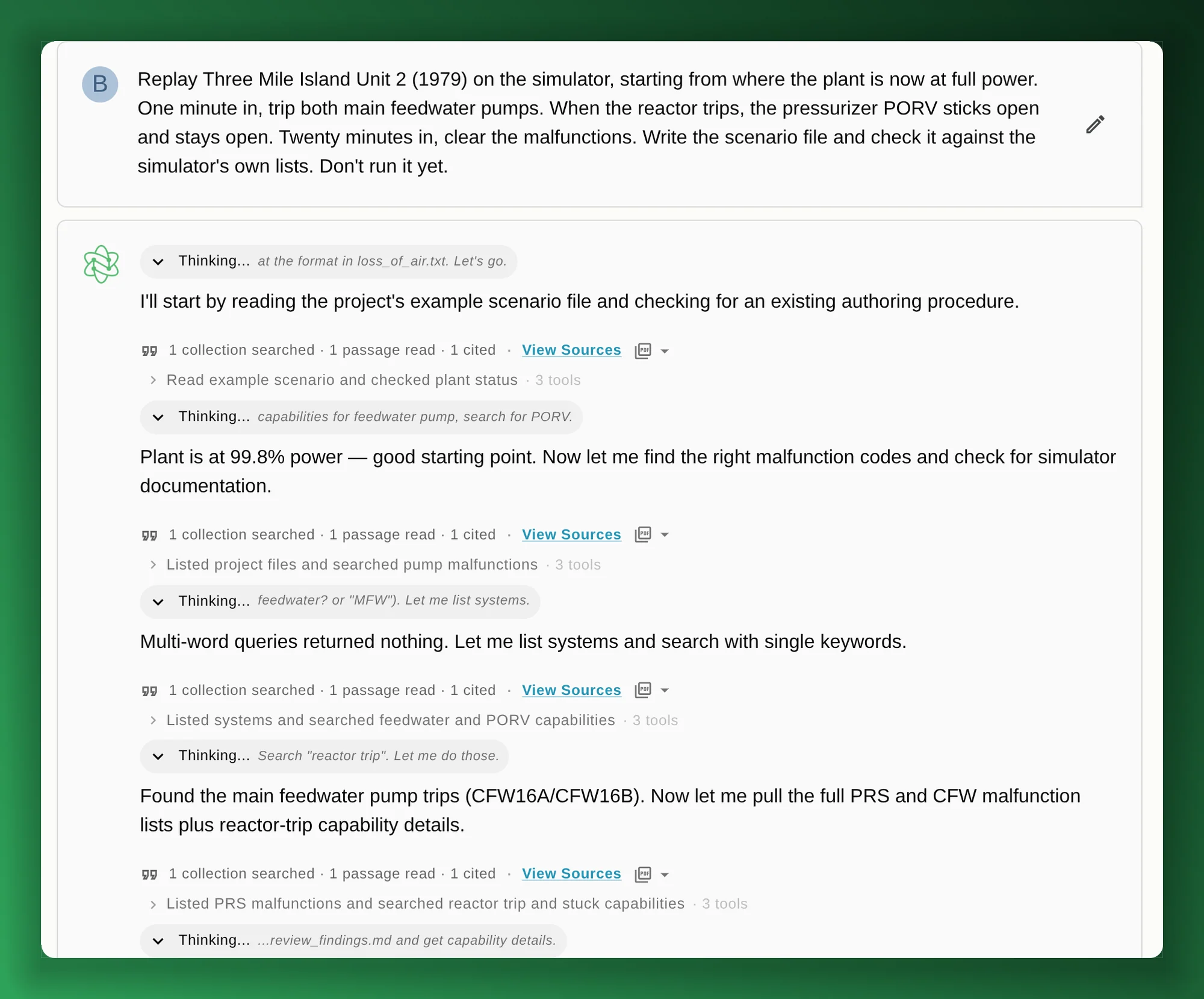
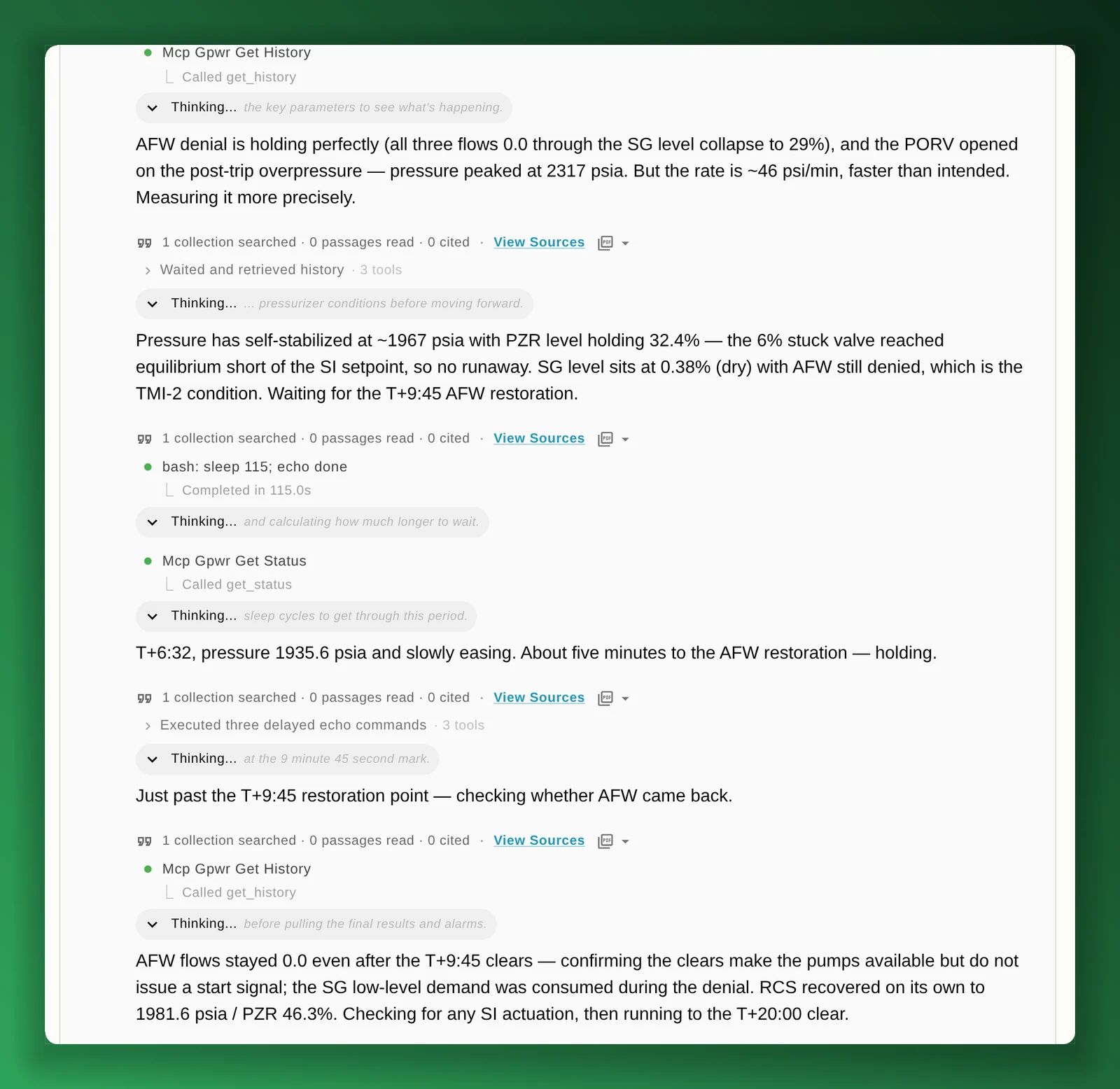
The AtomAssist screens and video are from a real session on GSE's GPWR simulator in Nuclearn's lab, replaying Three Mile Island Unit 2 (1979).
- Backed by NuclearnAI software built for nuclear plants since 2021
- Over 70 facilitiesNuclearn products serve sites in North America
- ISO/IEC 27001:2022Certified information security management
Three Mile Island Unit 2, replayed on GPWR.
A real session, sped up 12 times. AtomAssist runs the replay on GSE's GPWR simulator, watches the transient as it unfolds, and reports what the plant did, including where its own first write-up was wrong.
Full control of the simulator, in plain language.
Simulator AI is the plant AI with the simulator in reach. AtomAssist reads the plant's parameters and alarms, puts in malfunctions and operator actions, freezes, runs and resets the simulator, and runs scenario files, all from a conversation.
Replay an event from operating experience
Describe an industry event, such as a loss of feedwater with a relief valve that sticks open, and AtomAssist builds it as a scenario, runs it and shows what your simulated plant does.
See scenario writing → EngineersTry a what-if
What does pressurizer pressure do if a PORV sticks open at full power? Put the condition in, watch the parameters, and freeze or reset when you've seen enough.
See what it can do → Simulator engineersWrite a scenario by describing it
Say what should fail, when, and what happens next. AtomAssist writes the scenario file in the simulator's own format, with triggers and the cleanup at the end.
See scenario writing → Simulator engineersCatch mistakes before a file loads
Each file is checked against the simulator's own malfunction and control lists and their ranges, with a suggested fix for each problem.
See the checks → Anyone at the plantAsk the running plant
Any parameter, the alarms that are in and the recent history, asked in plain language while a scenario runs.
See questions →The simulator can answer more questions than it gets asked.
A full-scope simulator models the whole plant. Getting an answer out of it takes someone who knows its command language, its malfunction codes and its control station, so engineers rarely use it to see how the plant responds to an event or a change, and every scenario is written by hand, code by code.
Simulator AI lets you ask in plain words and does the rest: it writes the scenario, checks it, runs it and tells you what the plant did.
- Scenario files written from a description, in the simulator's own format.
- Malfunction and control codes found by system, not looked up in long lists.
- Parameters, alarms and history read back in plain language.
What Simulator AI does from a conversation.
From a question to a run you can review
AtomAssist works through the simulator's own interfaces, so the simulator itself stays as it is.
Describe what you want to see
In AtomAssist, in plain words: an event to replay, a what-if, or a scenario with its starting conditions, what fails and when.
AtomAssist writes and checks it
It finds the malfunctions and controls in the simulator's lists, writes the scenario file, and checks it before anything loads.
Run it and see the results
The scenario runs on the simulator while AtomAssist records the key parameters. Afterwards it writes up what the plant did.
The scenario you describe, as a file the simulator runs.
AtomAssist writes the simulator's own scenario-file format, the one your team already uses. Malfunctions go in with their severity and how fast they ramp, operator inputs and remote functions at the right times, and triggers that fire when the plant reaches a condition. Ask for a change and it edits the file.
- Timed steps, ramps, triggers and the cleanup that leaves the next run clean.
- Comments that say what each step does.
- Works on your existing scenario files too.
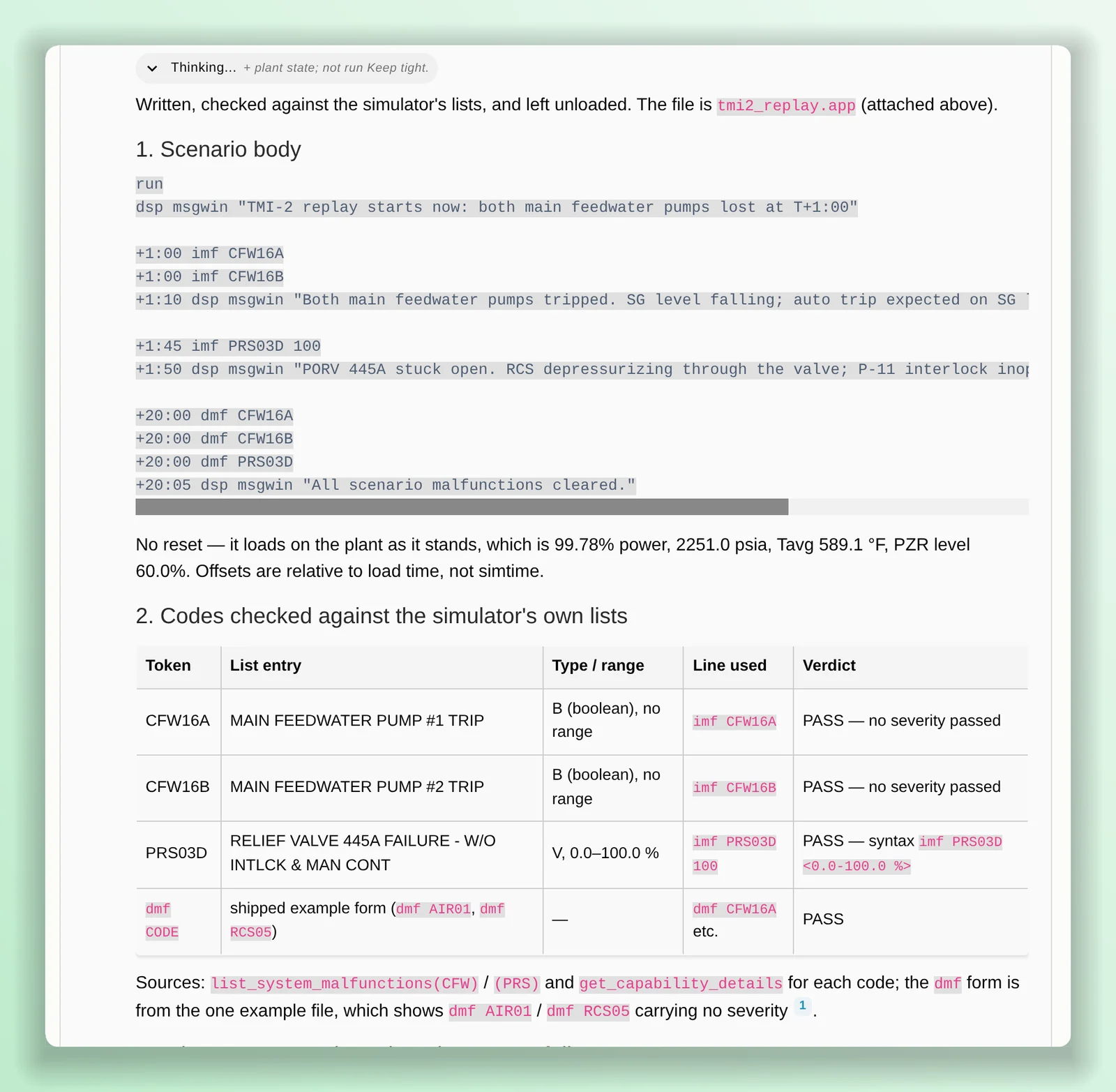
Wrong codes and ranges caught before the file loads.
Before a file runs, AtomAssist checks it against lists taken from the simulator itself: its malfunctions, remote functions, operator controls and alarms, and the range each one accepts. Each problem comes back with its line and, where there's a likely match, the code you probably meant.
- Command syntax and timing.
- Unknown malfunction, control and alarm codes, with suggestions.
- Severities and setpoints outside their range, and triggers that are used but never set.
The checks cover the file, not the physics. What the plant does with it shows up when it runs.
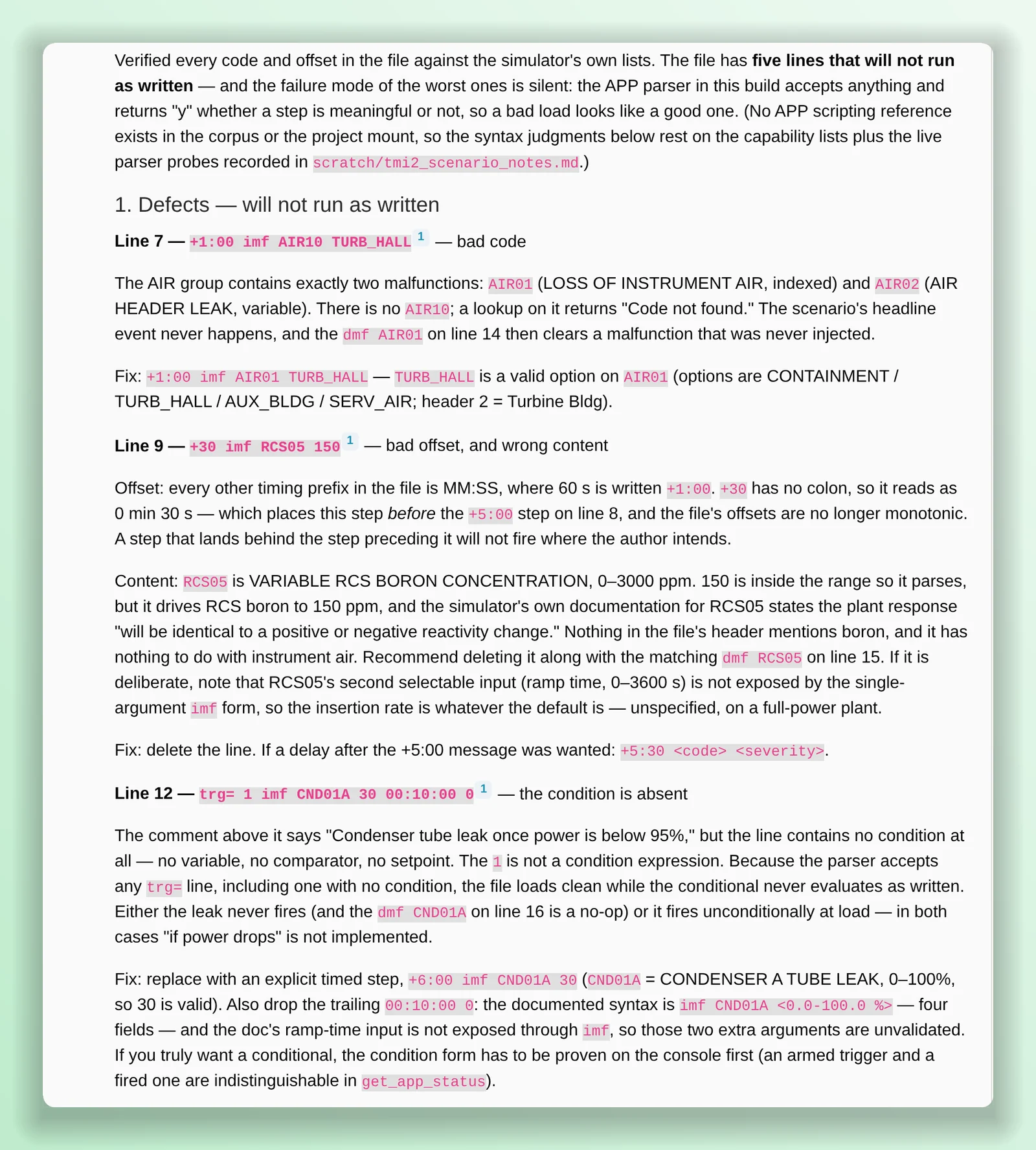
What the plant did, in order.
From the moment it connects, AtomAssist records a standard set of plant parameters every two seconds, and it adds the ones a scenario needs when it starts. After the run it lines up the scenario's events with what the parameters did, plots them over the run, and writes the summary.
- Plots made from the recorded history, for the parameters you pick.
- The alarms that are in, with their system and panel, whenever you ask.
- Ask follow-up questions about the run in the same conversation.
The summary describes the simulated plant. It isn't an engineering analysis of record.
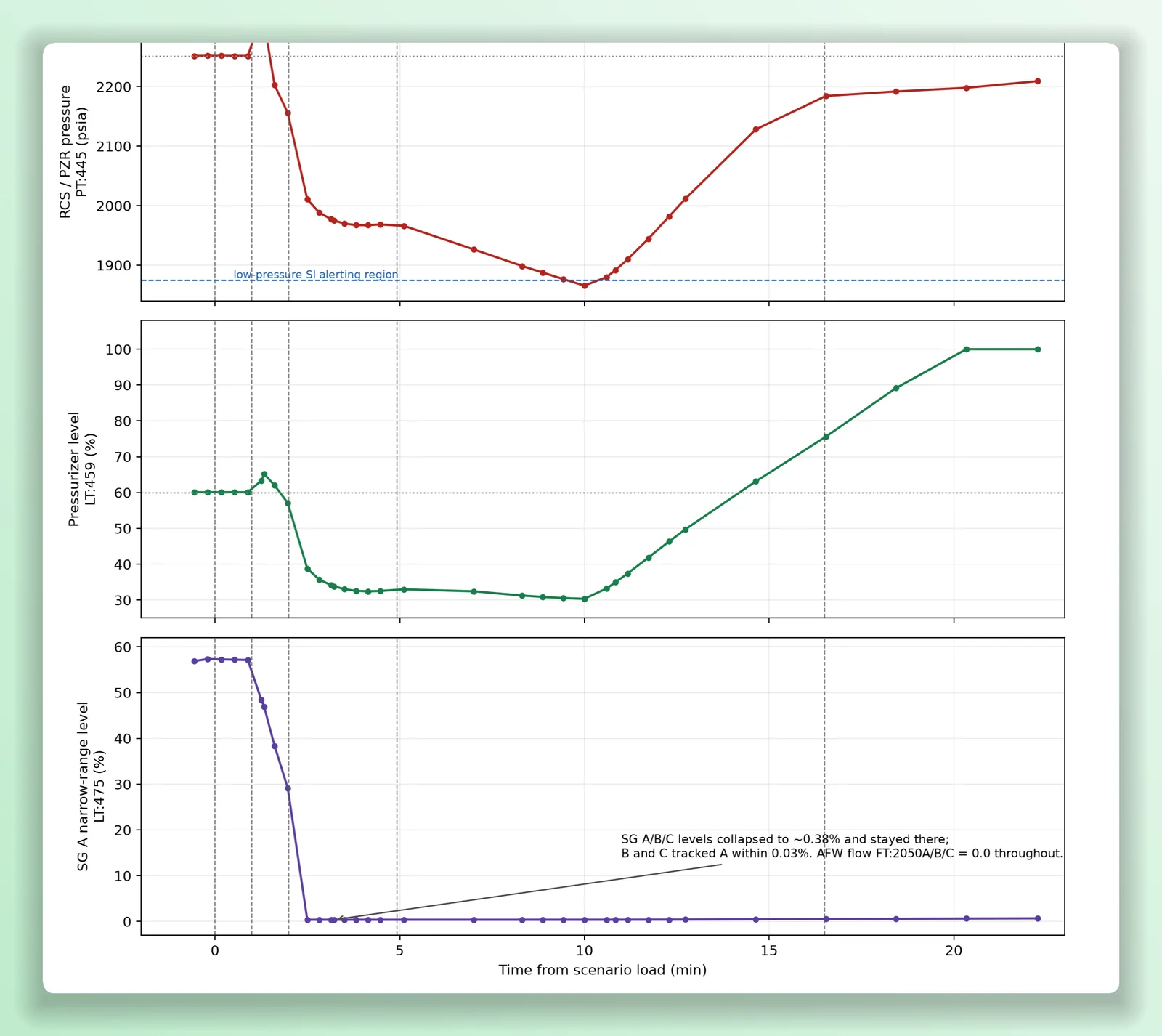
Ask the plant. Find the code. Run the scenario.
With the simulator connected, AtomAssist can read the plant and act on it through the simulator's own interfaces, and you ask for all of it in plain language.
With the simulator connected
Each of these is something AtomAssist can do from the conversation.
AI for nuclear plant simulators, with GSE.
In August 2026, GSE Solutions and Nuclearn announced a collaboration to bring Nuclearn's AI into GSE's nuclear plant simulators, and to build engineering tools on the Nuclearn platform from simulator access and data.1 The simulator on this page is GSE's GPWR. This is where each announced item stands.
On the simulator
- Working todayScenarios written from plain language
- Working todayA summary after each scenario run
- AnnouncedPlant-specific physics explanations on the simulator
For engineering, on the Nuclearn platform
- AnnouncedPattern recognition to flag early signs of equipment or procedural drift
- AnnouncedScenario exploration for risk and design analysis
- AnnouncedA sandbox to assess plant modifications before they're made
- AnnouncedOperator decision support
- AnnouncedHelp evaluating new reactor designs, including small modular reactors
"Working today" means on the GPWR simulator behind Nuclearn's simulated plant. What goes into GSE's own simulator products is GSE's to announce.
Your simulator, your scenario files, your engineers
No changes to the simulator
A small connector next to the simulator uses the simulator's own interfaces for reading, control and scenario files. The models and the simulator's control station stay as they are.
Your scenario files
The same file format your team writes today. AtomAssist can read, check, change and run the scenarios you already have.
Checks from your simulator
The lists the checks use are taken from the simulator itself.
Shown on GSE's GPWR, not tied to it
The simulator on this page is GSE Solutions' GPWR, a full-scope PWR simulator, from Nuclearn's simulator partner. Simulator AI isn't tied to it: tell us which simulator you run and we'll say what connecting it involves.
Recording from the start
A standard set of parameters every two seconds, plus any a scenario adds.
A key for each connection
Keys are stored hashed, and revoking one takes effect at once.
What it is not
Simulator AI works on the simulator, not the plant: it doesn't connect to plant systems. A result from the simulator shows what the simulator's model of the plant did, not an engineering analysis of record. It writes and runs what you ask for, and reports what the simulated plant did.
Your conversations stay in your Nuclearn deployment.
Scenario files, recorded runs and conversations live in your plant's AtomAssist on the Nuclearn platform, in Nuclearn's own datacenter, and access goes through the platform's sign-in and roles.
Single-tenant, hosted by Nuclearn
Each plant gets its own instance, hosted by Nuclearn in its own datacenter on its own hardware. Azure Government or your own servers on request.
Built for 10 CFR Part 810
How Simulator AI is hosted, operated and supported is set up for 10 CFR Part 810 export controls.
The simulator only
The connector reaches the simulator and nothing else. Plant systems are out of its reach.
Keyed connections
AtomAssist needs a key to reach the connector. Each connection has its own, and a revoked key stops working at once.
Sign-in and roles
Single sign-on through your identity provider, or the platform's own accounts. Platform roles decide who can use AtomAssist with the simulator connected.
A certified company
Nuclearn is ISO/IEC 27001:2022 certified. Simulator AI is switched on per deployment.
Questions simulator and engineering teams ask first
Which simulators does it work with?
This page shows GSE Solutions' GPWR, the full-scope PWR simulator behind Nuclearn's simulated plant. GSE and Nuclearn have announced a collaboration to bring Nuclearn's AI into GSE's nuclear plant simulators. Simulator AI isn't tied to GPWR: tell us which simulator your plant runs and we'll say what connecting it involves.
Does it change our simulator?
No. A small connector next to the simulator uses the simulator's own interfaces to read parameters and alarms, control the run and load scenario files. The models and the simulator's control station aren't modified.
Can we use the scenario files we already have?
Yes. AtomAssist writes the simulator's own scenario-file format, so it can read, check, change and run the files your team has written.
How does it know the codes are right?
The checks use lists taken from the simulator itself: its malfunctions, remote functions, operator controls and alarms, with the range each accepts. A file with an unknown code or an out-of-range value comes back with the line and a suggested fix before it loads.
Can it reach the real plant?
No. Simulator AI connects to the simulator only, and plant systems are out of its reach.
Can engineers use it for what-ifs?
Yes. Engineers can put in malfunctions and operator actions, watch any parameter, and freeze, run or reset the simulator from the conversation. The results show what the simulator's model of the plant does; they aren't an engineering analysis of record.
Is Simulator AI part of AtomAssist?
Simulator AI is AtomAssist with your simulator connected: a connector next to the simulator and the scenario checks, switched on per deployment. It shares the platform's sign-in, documents and permissions, so you can ask about procedures and the simulator in the same conversation.
Where does it run, and who can sign in?
Each plant runs in its own single-tenant instance, hosted by Nuclearn in its own datacenter on its own hardware, with hosting, operations and support set up for 10 CFR Part 810 export controls. Azure Government or your own servers on request. People sign in through the platform, with single sign-on if you use it, and platform roles decide what each person can do.
See the simulator run by asking.
We'll replay an event or try a what-if from a plain-language description, watch AtomAssist write, check and run the scenario on GSE's GPWR simulator, and go through what the plant did. Then we'll talk about your simulator and what you'd use it for.
- A live run on GSE's GPWR full-scope simulator
- A scenario of your choosing, written from your description
- What connecting your simulator involves
Nuclearn Simulator AI is backed by Nuclearn, whose products serve over 70 facilities in North America
Book a demo
Tell us a little about your site and we'll set up a time.
Thanks, we've got it.
We'll be in touch to set up a time. If it's urgent, email contact@nuclearn.ai.
Rather choose a time yourself? See open times on the calendar →
Prefer email? contact@nuclearn.ai